Access is offered to you free of charge and will allow you to:
Update your appointment notification preferences
Update your personal information
Receive messages and documents from your clinic
There are several ways to register for the Pomelo portal:
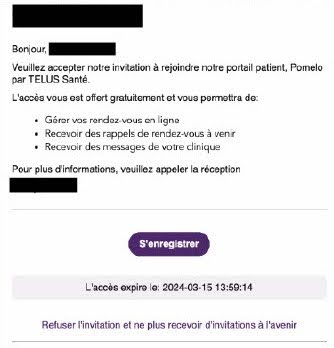
When you receive a document from your clinic, you will receive an email invitation to create your account
Your clinic may also send you an email invitation to register for the patient portal.
How to register for the Pomelo Patient Portal
If you receive an invitation email, click the “S’enregister / Register” button.
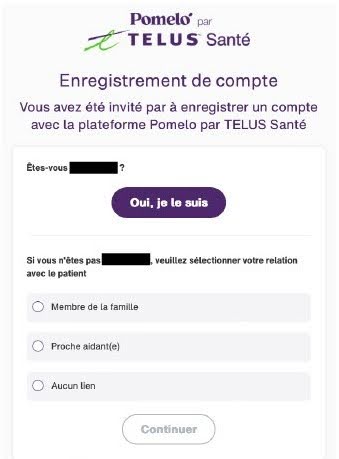
If you want to create your own account, click “Oui, je le suis / Yes, I am.” Otherwise, choose the option that matches your needs and click “Continuer / Continue.”
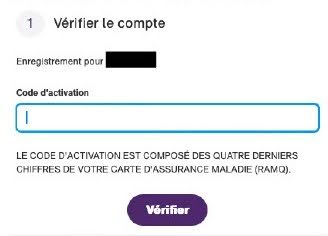
Enter the activation code, which consists of the last four (4) digits of your health insurance card (RAMQ). If you do not have a RAMQ card on file, your date of birth will be requested.
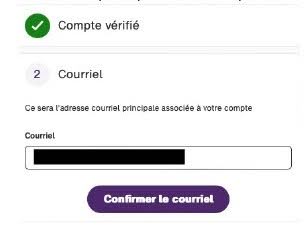
Provide your email address. If your email address is not unique—that is, it is already being used at another clinic that uses Pomelo—an error message will appear. In that case, you must either use a different email address or click the “Need help? / Besoin d’aide?” button at the bottom right of the page to open a technical support ticket with patient support.
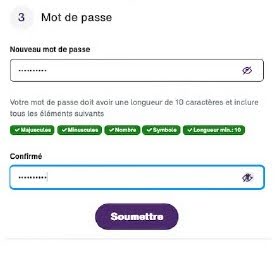
Create your password
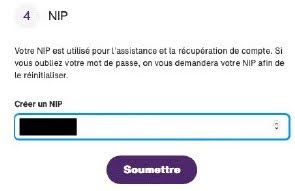
Create a PIN. This PIN will be required if you forget your password
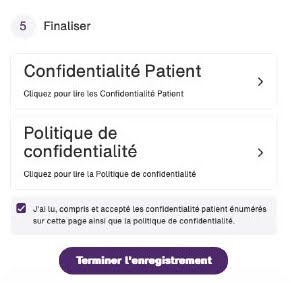
Accept the privacy policy and complete the registration.
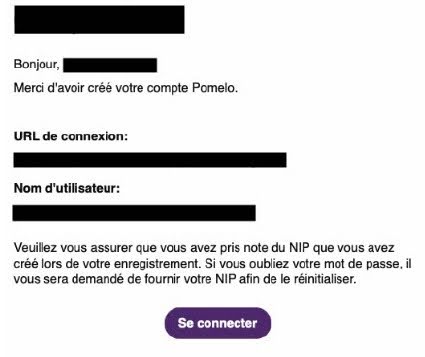
Once your account is registered, you will receive a confirmation email
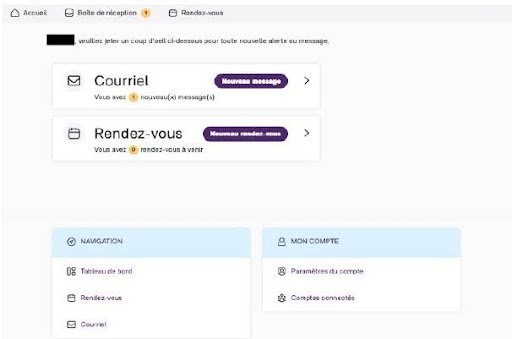
Overview of your Pomelo Patient Portal
Email tab
Any message sent by the clinic to your patient portal will appear here. You will receive an email notification informing you when you have a new message to review in the portal. Please note that the option to write a message to your clinic is not always available.
Appointments tab
You can view your appointment dates.
Account settings
This allows you to update your information, adjust your notification preferences, and more.
Connected Accounts
This allows you to set up a family connection and establish a link between patient profiles that may not be able to manage their own accounts (for example, children and elderly individuals). Once these connections are established AND depending on the configured permissions, these patients may be able to manage appointments (for example, booking, cancelling, receiving notifications, and reviewing upcoming appointments).
You can create and manage your own connections. During patient portal registration, instructions are sent by default to your patient portal.
You can connect your children under 14 years old who already have a Pomelo account at the same clinic by going to Account Settings > Connected Accounts. Please enter only the first name, last name, date of birth, and health insurance card number without special characters. After creating the connection, you will need to log out of the portal and log back in to verify the connection.
For individuals aged 14 and over who have a Pomelo account at the same clinic, you can initiate a connection in the same way. However, they will need to register with their own unique email address and give you consent to manage their account. If the person you are trying to connect does not have a Pomelo account at the same clinic, or if you wish to share the same email address with another person over 14, please contact your clinic directly.